
How to Ping for an IP Address Regardless of Your Operating System
Wondering how to ping for an IP address? Pinging an IP address is one of the most fundamental network diagnostic tools available. It helps verify if a device is reachable over a network and measures the response time (latency).
Whether you’re troubleshooting connectivity issues, checking server availability, or testing your internet connection, the ping command is essential for IT professionals, network administrators, and even home users.
This guide explains what ping is, how to use it on different operating systems, and best practices for accurate results. All information is based on standard networking protocols and official documentation from sources like Microsoft and Linux man pages.
What is Ping?
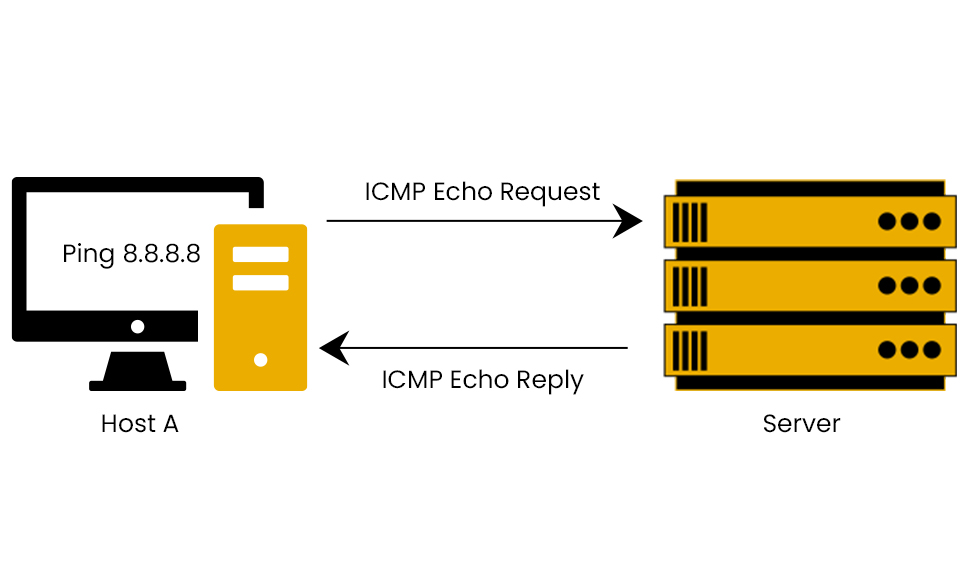
Ping is a command-line utility that uses the Internet Control Message Protocol (ICMP) to send echo request packets to a target IP address or hostname. The target device, if reachable and configured to respond, sends back an echo reply.
- The name “ping” comes from sonar technology, where a sound pulse is sent and the echo is measured.
- It measures round-trip time (RTT) in milliseconds—the time it takes for the packet to travel to the destination and return.
- Ping also reports packet loss, which indicates network reliability.
Developed in 1983 by Mike Muuss, ping is built into virtually every operating system with TCP/IP support. For more details on the protocol, see the ICMP specification in RFC 792.
What is the Primary Reason to Ping an IP Address?
The primary reason to ping an IP address is to test reachability and basic connectivity on an IP network. According to Microsoft documentation, ping is “the primary TCP/IP command used to troubleshoot connectivity, reachability, and name resolution.”
Key uses include:
- Verifying if a host (e.g., a server, router, or website) is online and responding.
- Diagnosing network issues like packet loss or high latency.
- Checking DNS resolution (by pinging a hostname vs. its direct IP).
Pinging an IP directly bypasses DNS, helping isolate whether problems are network-related or due to name resolution failures.
How Does Ping Work?
When you run the ping command:
- Your device sends small ICMP echo request packets (default 32-56 bytes) to the target.
- The target responds with ICMP echo replies if it’s reachable and ICMP is not blocked.
- Results show response times, TTL (Time to Live), and statistics like packets sent/received/lost.
Common outcomes:
- Success: Replies with times (e.g., “time=50ms”).
- Timeout: No response (possible firewall block or offline host).
- Destination unreachable: Routing issue.
Note: Many firewalls block ICMP for security, so no response doesn’t always mean the host is down.
How to Ping an IP Address on Different Operating Systems
The ping command syntax is similar across platforms, but defaults differ (e.g., Windows sends 4 packets by default; Linux/macOS pings continuously).
On Windows
- Open Command Prompt (search for “cmd”).
- Type: ping <IP address or hostname>
- Example: ping 8.8.8.8 (Google’s public DNS).
- For continuous ping: ping -t <IP>
- Stop with Ctrl+C.
Useful options (from Microsoft Docs):
- -n <count>: Specify number of pings (e.g., -n 10).
- -l <size>: Set packet size (e.g., -l 1000 for testing MTU).
- -w <timeout>: Wait time in ms.
On macOS
- Open Terminal (Applications > Utilities > Terminal).
- Type: ping <IP address or hostname>
- Example: ping 192.168.1.1.
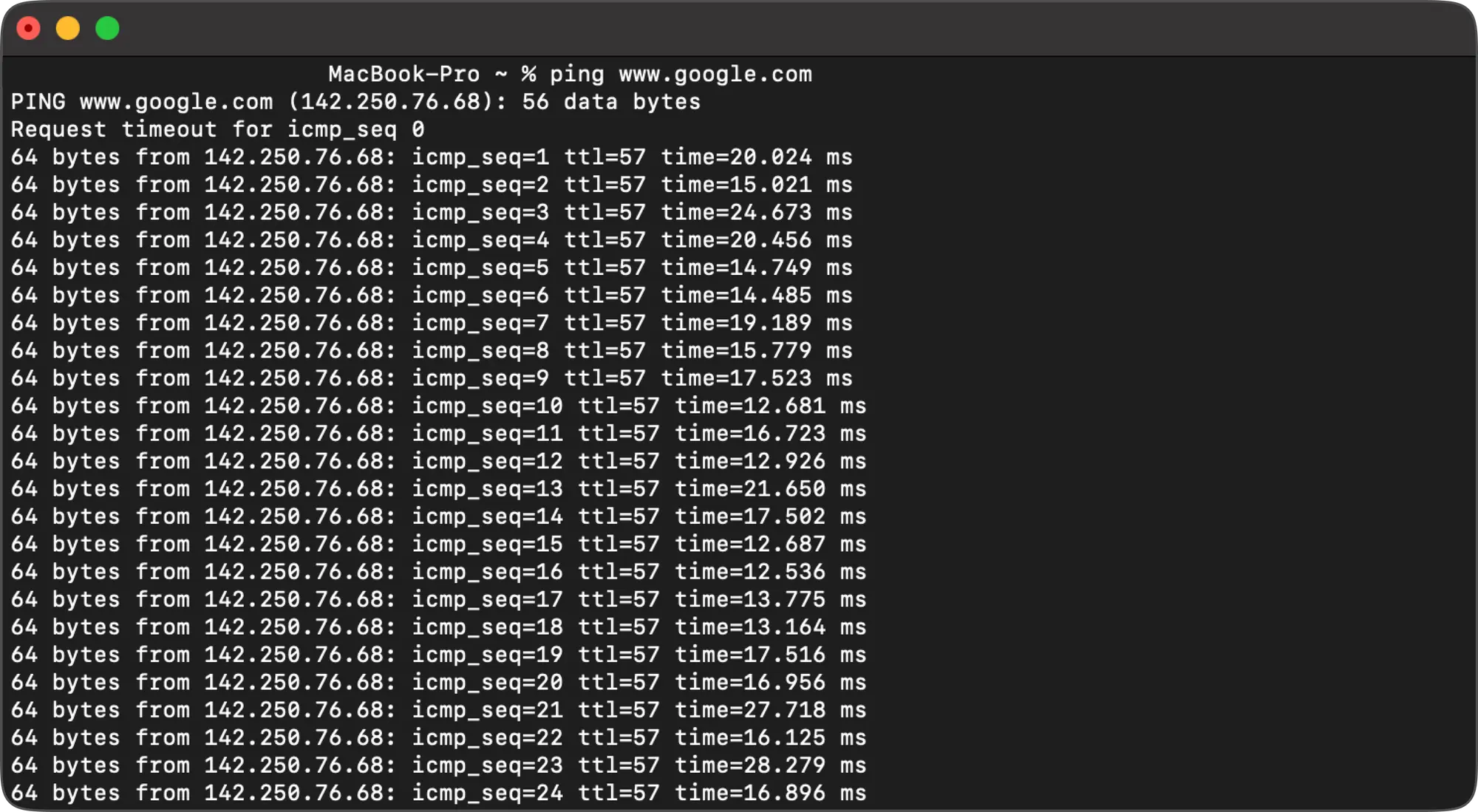
- Pings continuously by default; stop with Ctrl+C.
- Limit count: ping -c <count> <IP> (e.g., -c 4).
On Linux
Similar to macOS:
- Open Terminal.
- Type: ping <IP address or hostname>
- Stop with Ctrl+C.
- Options: -c <count>, -s <size> (packet size), -i <interval> (seconds between pings).
For full options on Linux, refer to the ping man page.
Interpreting Ping Results
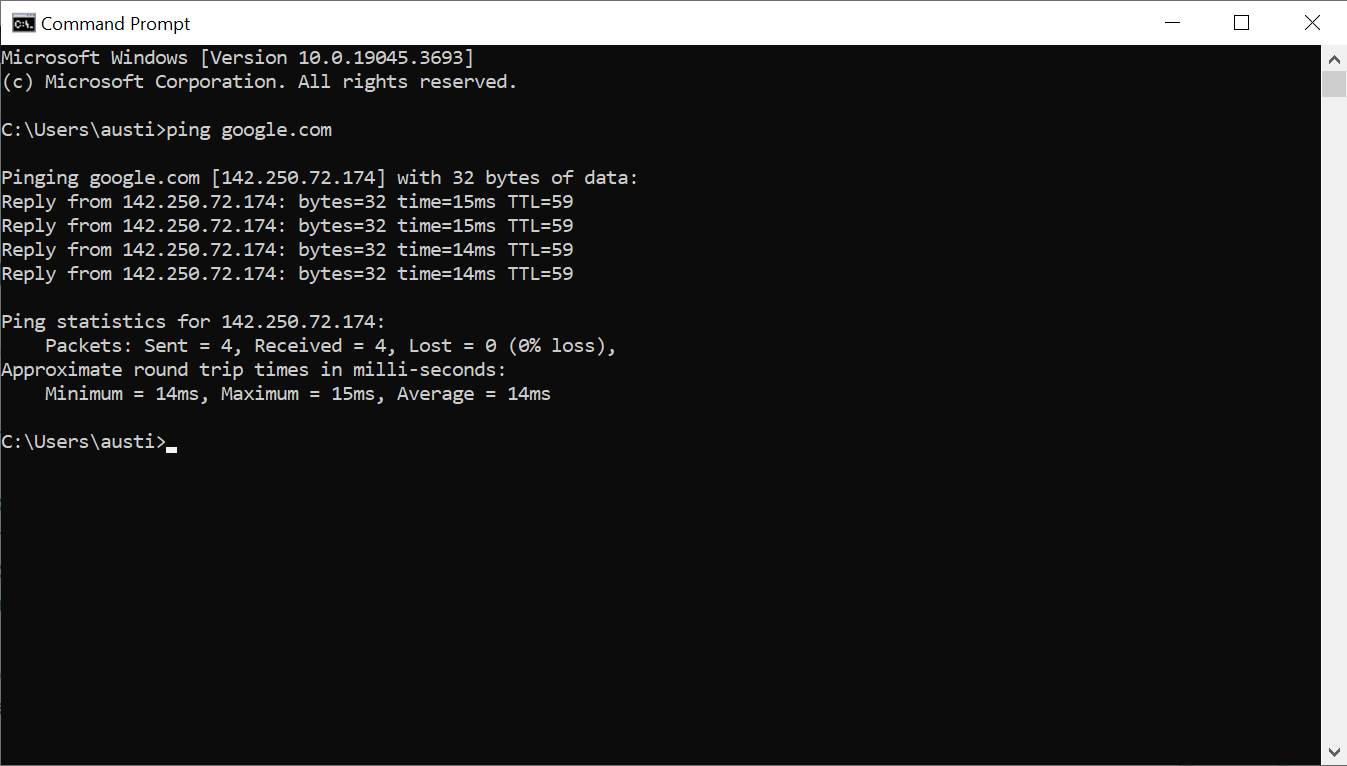
A successful ping looks like this (Windows example)
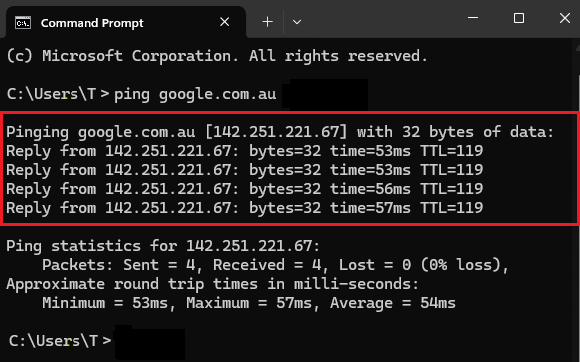
- time: Latency in ms (lower is better; <50ms ideal for local networks).
- TTL: Hops remaining (starts at 128/255; lower means more routers traversed).
- Summary: Packets sent, received, lost (% loss).
Common issues:
- 100% packet loss: Host offline, firewall blocking ICMP, or network down.
- High latency: Congestion or distant server.
- Variable times: Unstable connection.
Advanced Ping Options and Troubleshooting Tips
- Continuous ping: Monitor intermittent issues (ping -t on Windows; default on Linux/macOS).
- Large packets: Test for fragmentation issues (-l 1472 on Windows for MTU discovery).
- Troubleshooting steps:
- Ping localhost (127.0.0.1) – Tests your TCP/IP stack.
- Ping your router – Checks local network.
- Ping external IP (e.g., 8.8.8.8) – Tests internet.
- Ping hostname – Checks DNS.
Combine with traceroute/tracert for path issues.
Limitations of Ping
- ICMP may be blocked by firewalls (common on public servers).
- Doesn’t test specific ports (use tools like telnet or nc for that).
- Not a full bandwidth or application test.
For deeper diagnostics, consider tools like traceroute or MTR.
FAQ
Can I ping a specific port? No, ping uses ICMP and doesn’t target ports (which are TCP/UDP). Use tools like PowerShell’s Test-NetConnection or nmap for port checks.
Why does ping fail but the website loads? Firewalls often block ICMP while allowing HTTP/HTTPS traffic.
What is a good ping time?
- <30ms: Excellent (local/gaming).
- 30-100ms: Good.
-
100ms: Noticeable lag.
Is pinging safe? Yes for diagnostics, but excessive pings can resemble a DDoS attack—use responsibly.
How do I ping from another location? Use online tools or platforms like Globalping for global tests.
Mastering ping is a key skill for network troubleshooting. Start practicing today to quickly diagnose connectivity problems! For official Windows ping details, visit Microsoft Learn.